Event Types
Categories that decide what an event looks like and where it appears.
An event type is a category such as Event, Notice or School Calendar. It controls three things: which optional fields appear on the event form, how that type's events are listed, and whether the type gets its own link in the sidebar.
Four types are built in and marked System: Event, Notice, School Calendar, and Fee Due Date (a child of School Calendar that is hidden from the sidebar). You can add your own, for example Exam Routine or Achievements.
The list page
Open Event Management → Event Types.
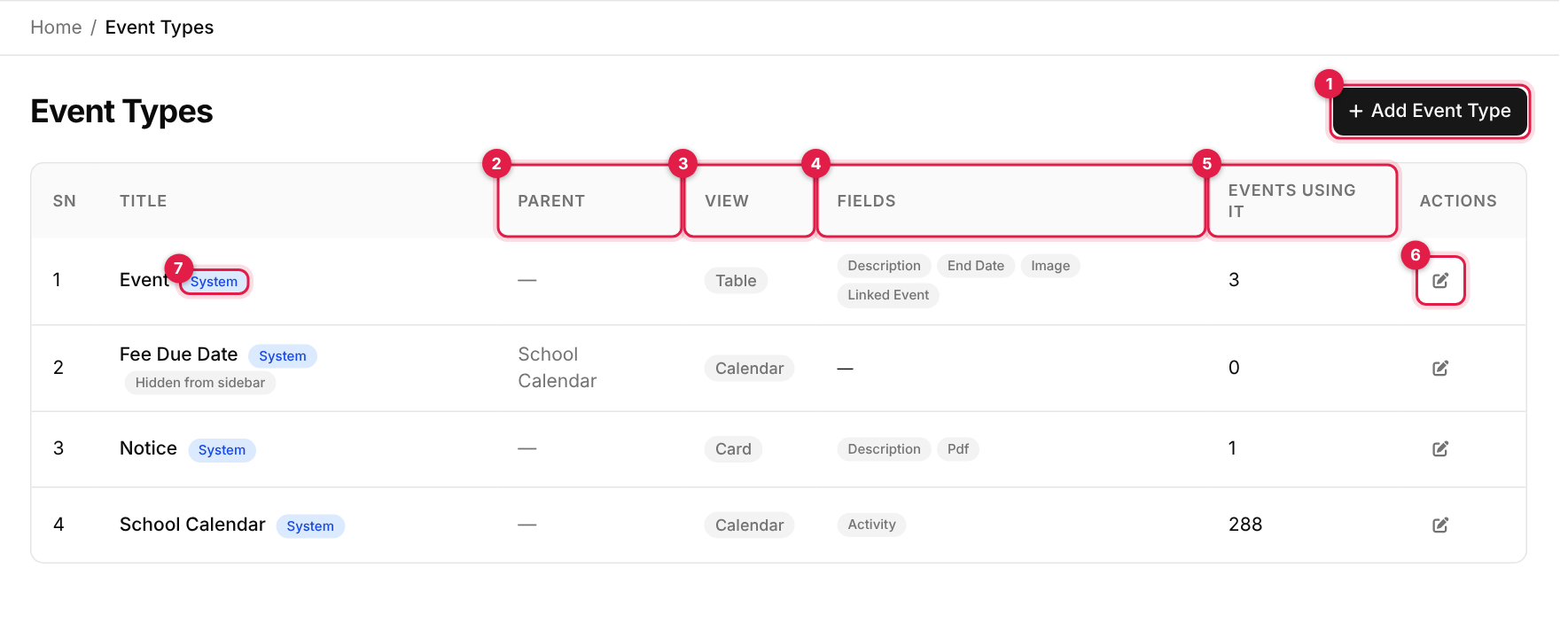
- 1Add Event Type opens the add form (a full page, not a side panel).
- 2Parent: the type this one is nested under, or a dash.
- 3View: how the type's events are listed: Table, Calendar or Card.
- 4Fields: the optional fields the event form shows for this type.
- 5Events Using It: how many events belong to the type.
- 6Edit (pencil).
- 7System badge: a built-in type. Built-in types can be edited but not renamed or deleted.
No search or paging
Add an event type
-
1
Open the form
Click Add Event Type (callout 1). -
2
Fill in the details
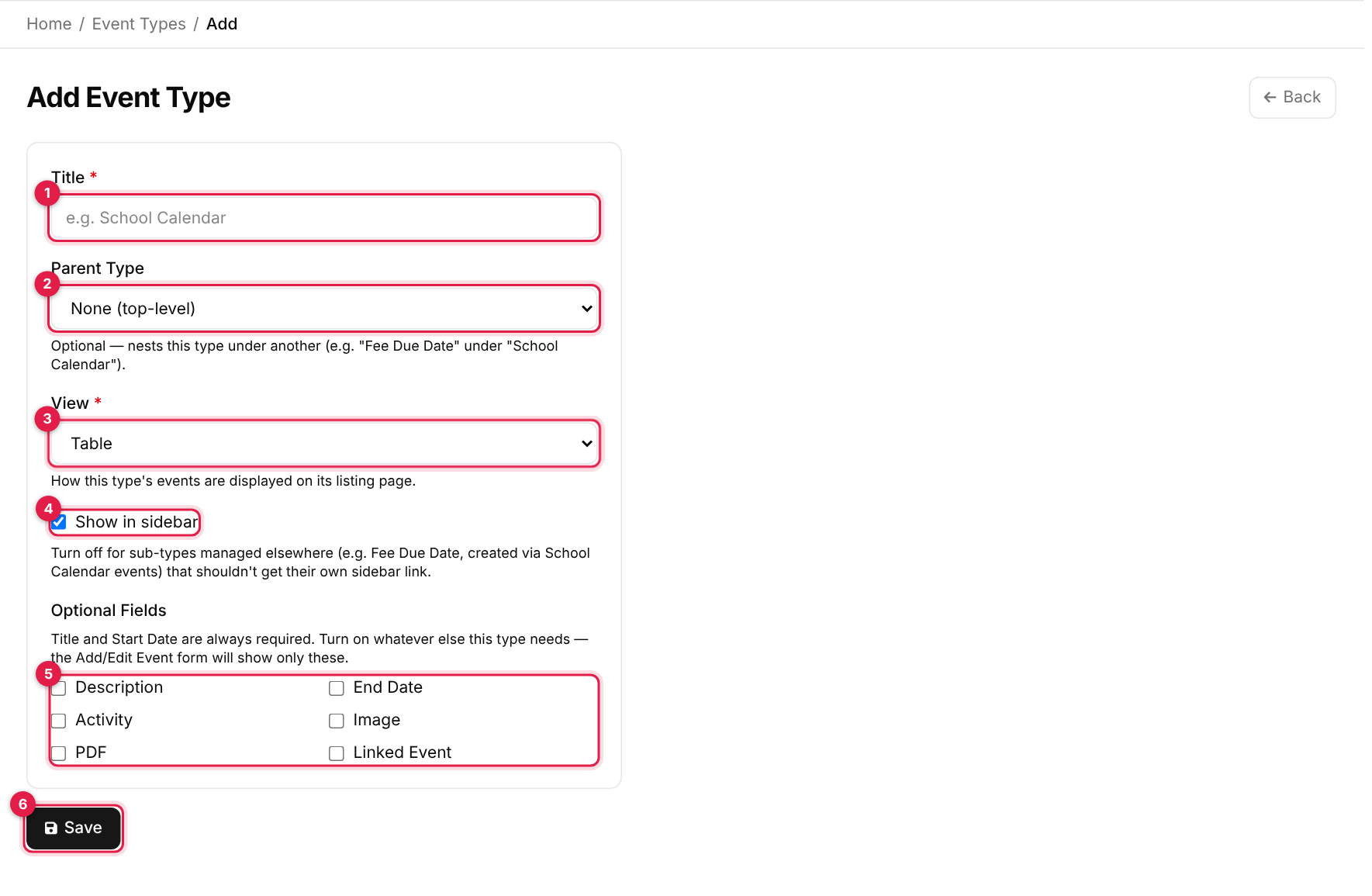
The Add Event Type form # Field Required What to enter 1 Title Yes A unique name, for example Exam Routine. Shown as the page title and sidebar link.2 Parent Type No Nest this type under another. None (top-level) by default. A type cannot be its own parent. 3 View Yes Table (default) lists events in rows, Calendar shows a month grid, Card shows a card per event. 4 Show in sidebar No On by default. Turn it off for sub-types managed elsewhere, such as Fee Due Date. 5 Optional Fields No Tick what this type needs: Description, End Date, Activity, Image, PDF, Linked Event. Title and Starting Date are always asked. Callout 6 is the Save button.
-
3
Save
Click Save. You return to the list with Event type added successfully!. If the type has Show in sidebar on, its link appears in the sidebar.
Choose the optional fields with care
Edit an event type
-
1
Open it
Click the pencil on the row (callout 6). -
2
Change and update
The form opens with the current settings. Click Update to save. For a System type the Title is locked (System event types can't be renamed.), but you can change the other settings.
Delete an event type
Custom types show a red bin icon next to the pencil; System types do not. You are asked to confirm. A type cannot be deleted while any event still uses it.
Deleting a parent type
Messages you may see
| Message | What it means |
|---|---|
| Event type added successfully! | The type was created. |
| Event type updated successfully! | Your changes were saved. |
| Event type deleted successfully! | The type was removed. |
| Cannot delete: this event type is still in use. | Events still belong to it. Move or delete them first. |
| Cannot delete: this is a system event type. | Built-in types cannot be removed. |
| An event type cannot be its own parent. | Pick a different parent. |