Ledger Entry
Enter marks for a whole class in one grid, saved as you type.
The ledger shows every student of a class as a row and every subject (with its formative marks) as columns, so you can type marks across the class quickly. It reads and writes the same marks as Student Marks, with the same locks, deadline and grades.
Load the ledger
Open Exam Section → Ledger Entry, choose the Exam, Shift, Class and (if there is one) Section, then click Go.
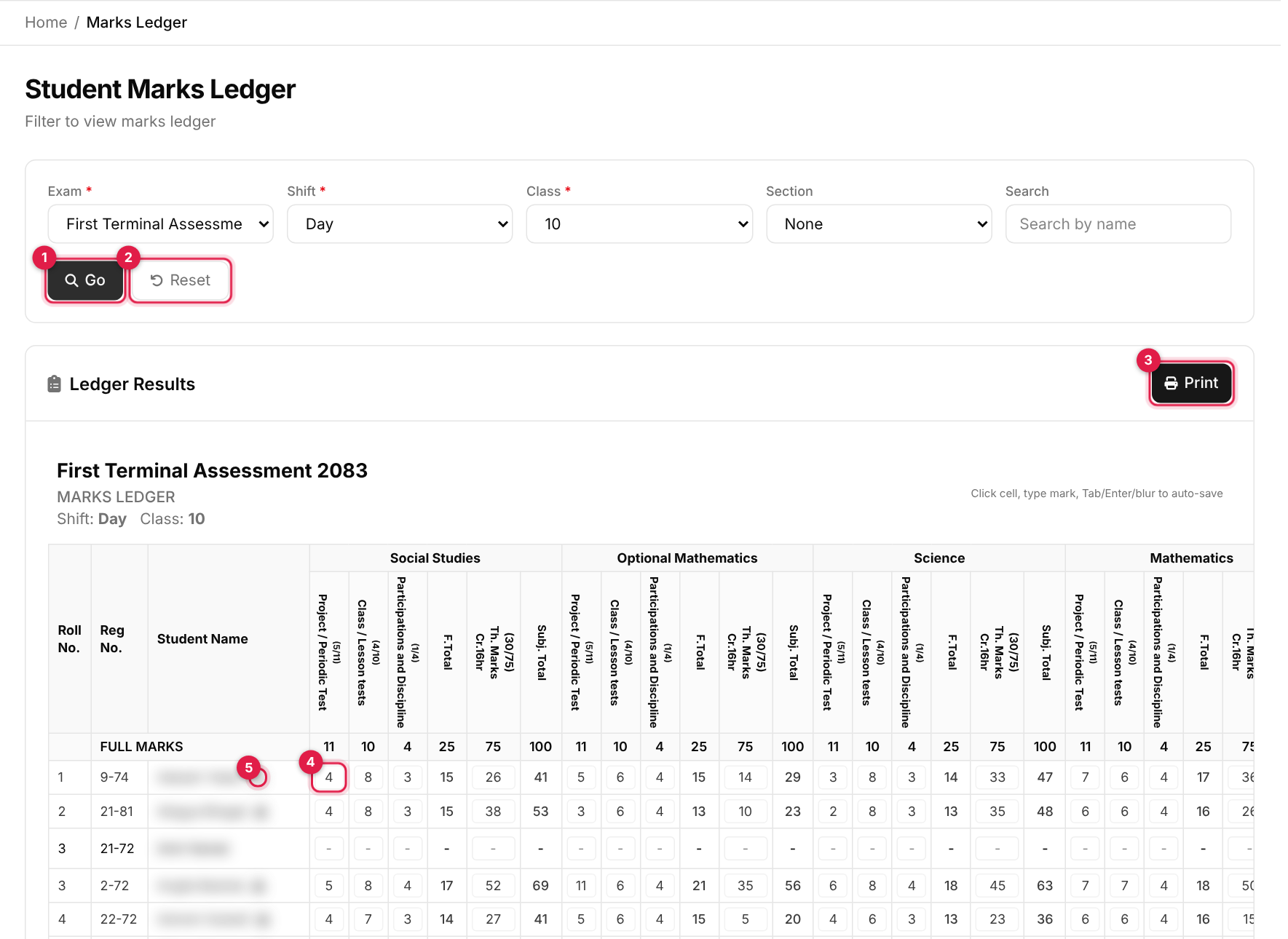
- 1Go: loads the grid. It needs an exam, shift and class, otherwise you see Please select Exam, Shift, and Class.
- 2Reset.
- 3Print (appears after Go): prints only the grid.
- 4A mark cell: click it and type.
- 5Lock icon beside a name: that student's marks are locked (approved or published) and the cells are disabled.
Choose a section here too
As on Student Marks, pick a section (even None) before clicking Go.
Read the grid
- Left columns: Roll No., Reg No., Student Name.
- For each subject: one column per formative assessment (with pass/full in the heading), F.Total, the summative mark (Th. Marks, with credit hours and pass/full) and Subj. Total. A FULL MARKS row shows the maxima.
- Right columns: Total, %, GPA, Rank and a row Save button.
Enter marks
-
1
Click a cell and type
Type a number,afor absent or-for no mark. A number above the full mark turns red; if you leave the cell you get Mark cannot exceed N and the cell is cleared. -
2
Move on
Tab, Enter or clicking away saves the cell (Enter also jumps to the next cell in the row). A cell also saves about half a second after you stop typing. The row's Save button saves the whole row. -
3
Watch for the confirmation
Saves are queued one at a time. After a short pause you see one message, All changes saved.. Errors appear straight away.
Good to know
- Clearing a cell you have changed saves
-(no mark). This is the way to remove a stored mark. - Total, %, GPA and Rank are worked out when you press Go and do not update as you type. Press Go again to refresh them.
- The column headed GPA shows the letter grade for the rounded percentage.
- Rank is by total marks, highest first. Teachers see only their own subjects and students.
Messages you may see
| Message | What it means |
|---|---|
| All changes saved. | Every pending cell was stored. |
| Mark cannot exceed N | The value is above that cell's full mark. |
| Marks entry deadline has passed. Contact admin to extend the deadline. | The exam's Marks Deadline is in the past. |
| Cannot edit marks — result is published. Unpublish first. | Unpublish the result in Student Marks. |
| Cannot edit marks — result is approved. Contact a super-admin to make corrections. | Only a super-admin can change approved marks. |
| No marks data found. Please configure subjects and marks for this exam. | Set up the class in Subject Marks Setup first. |