Ledger View
A read-only table of every student's marks, division and rank for one class.
Known issue: every student currently shows F
At the time of writing, this page shows F for Total Mark, Division and %, a dash for Rank, and blank subject columns for every student, even when marks exist. We saw this in every class we tried. Until it is fixed, use Ledger Entry to see the marks and Student Marks for report cards. The rest of this page describes how it is meant to work.
Ledger View is a printable results sheet. It has no input boxes. It shows every student's marks, whether or not the result has been approved or published, so treat it as a working view.
Open it
Open Exam Section → Ledger View, choose Exam, Shift, Class (and a Section) and click Go. The page reloads with the table.
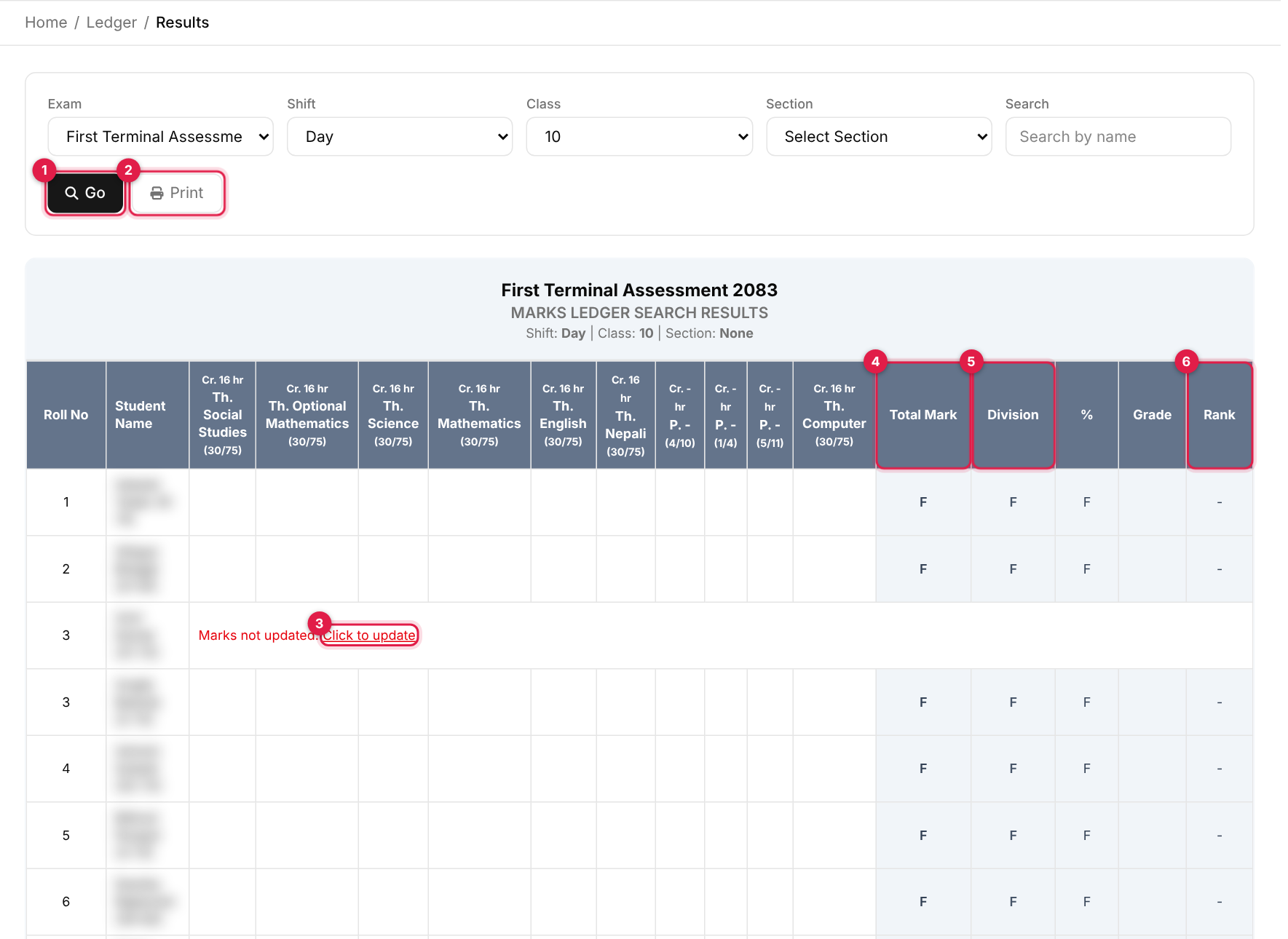
- 1Go: shows the results for the filters above.
- 2Print: prints the table (the filter box is hidden when printing).
- 3Click to update: a student with no marks shows Marks not updated. with a link to their entry form.
- 4Total Mark.
- 5Division.
- 6Rank.
How the table is meant to work
- Columns: Roll No, Student Name (with registration number), one column per subject (credit hours, Th. or P., name and pass/full), Total Mark, Division, %, Grade and Rank.
- Fail rule: if a student has an absent mark, a missing mark or a mark below the subject's pass mark, Total and Division show F and Rank shows a dash.
- Percentage: total divided by the sum of all full marks.
- Division: Distinction above 79%, First from 60%, Second from 50%, Third from 40%, otherwise F.
- Grade: from the active Grades scale.
- Rank: by total marks; students on the same total share a rank (1st, 2nd, 3rd, and so on).
- Marks are added up as whole numbers, so a decimal mark loses its fraction in the total.
Colours
The printed colours follow the exam result theme (Settings → Customize Exam).