Subject Marks Setup
Full marks, pass marks and exam dates for each class, plus formative marks.
Before marks can be entered, each class in an exam needs its full mark and pass mark for every subject, and an exam date. This page also feeds the exam routine and the report card. Formative assessments (project work, class tests and so on) have their own full and pass marks, set on a second page.
How to get here
Set subject marks and exam dates
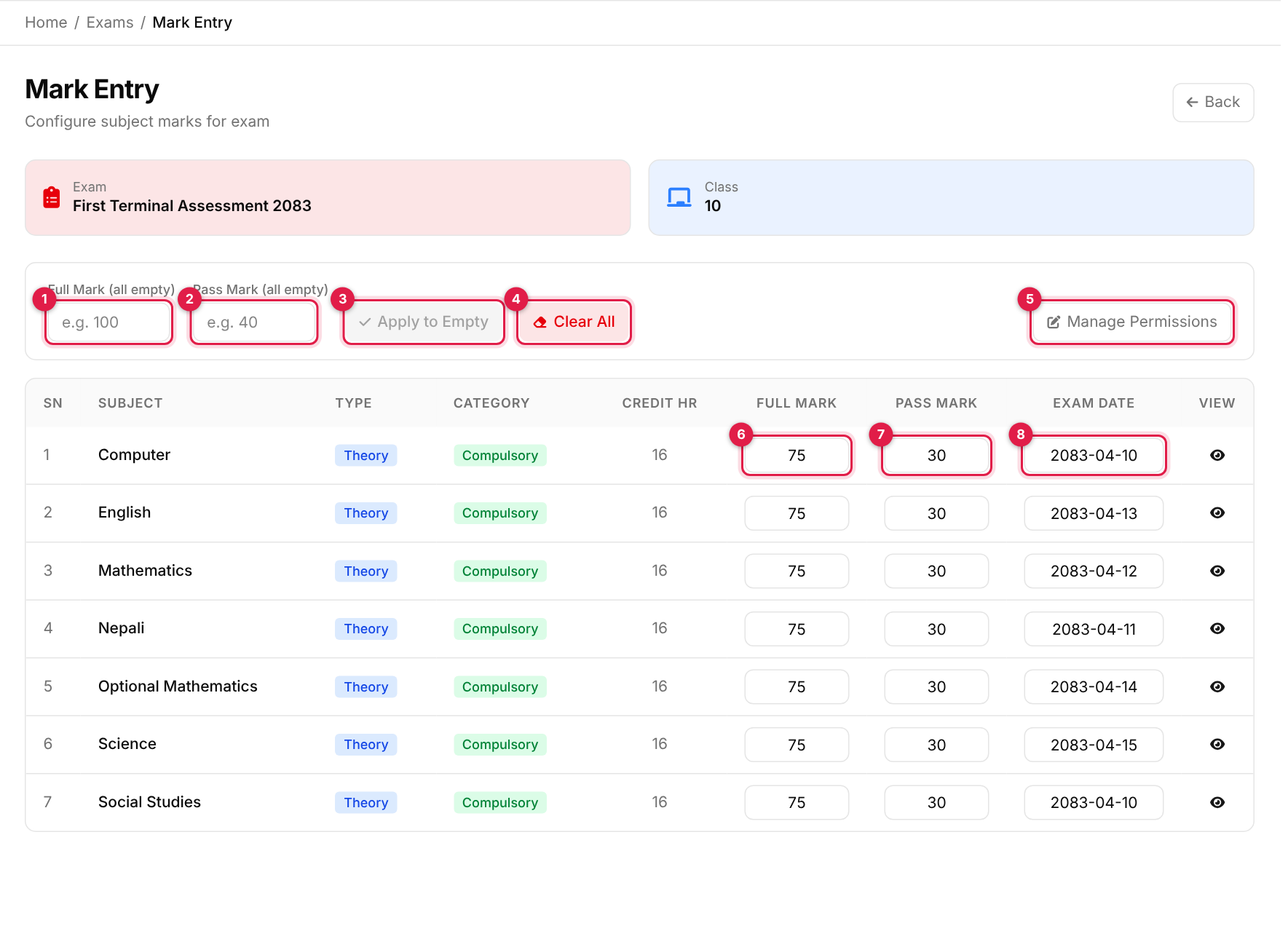
- 1Full Mark (all empty): a value to apply to every empty full-mark box.
- 2Pass Mark (all empty): the same for pass marks.
- 3Apply to Empty: fills only the boxes that are still empty.
- 4Clear All: empties every full and pass mark (you are asked to confirm).
- 5Manage Permissions: per-subject marks deadlines (shown only with the deadline permission).
- 6Full Mark for a subject.
- 7Pass Mark for a subject.
- 8Exam Date for the subject, a Nepali date.
The table lists the class's subjects that are set to conduct exam. Type (Theory, Practical or Both), Category (Compulsory or Optional) and Credit Hr come from Main Entry and cannot be changed here. The eye icon in the View column opens a printable roster of the class for that subject (name, phone, symbol number, signature, marks).
-
1
Fill the marks
Type the full and pass mark for each subject, or use the quick-fill boxes (callouts 1 to 3) and adjust the exceptions. -
2
Pick exam dates
Click each Exam Date and pick a date. It must fall between the exam's start and end dates, otherwise the box is cleared with a message. -
3
Save
The Save Changes button appears once you change something. Click it. You see Data added successfully! and return to the class list.
Helpful automatic behaviour
- Typing a full mark with an empty pass mark fills the pass mark with 40% of it.
- A pass mark above the full mark is rejected: Pass mark cannot be greater than full mark.
- New exam dates are suggested one day apart from the exam's start date, skipping Saturdays.
- The first time you open a class that has no marks yet, a Previous Exam Marks box offers to copy the marks from the class's latest earlier exam (Use This) or start fresh (New Marks Entry). The copy matches subjects by their position in the list, so check the result.
Manage permissions (marks deadlines per subject)
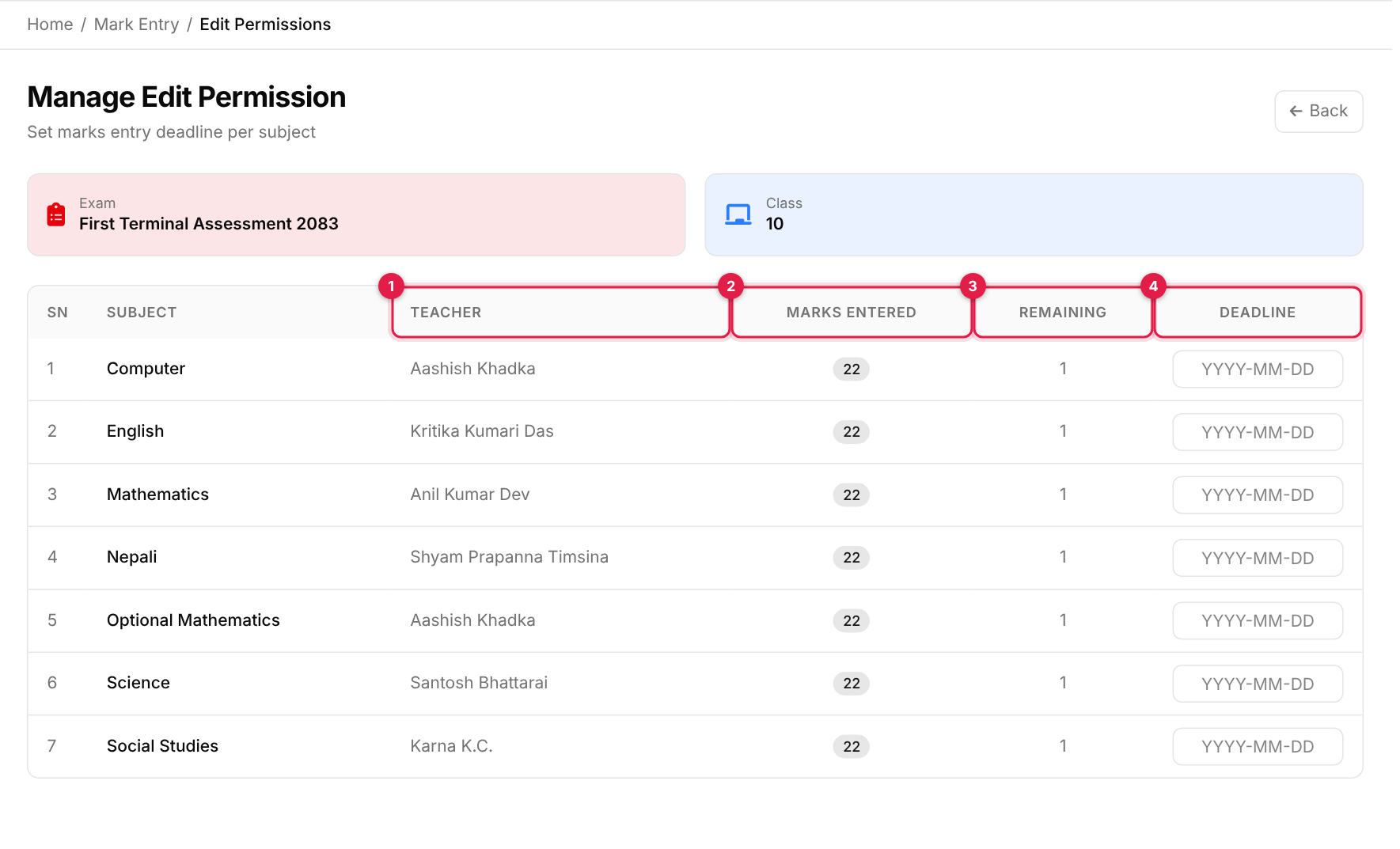
- 1Teacher: who teaches the subject.
- 2Marks Entered: how many students already have a mark.
- 3Remaining: how many students still need a mark.
- 4Deadline: a date per subject. Shows Not configured until the subject has a marks row.
Check this before relying on it
Formative marks
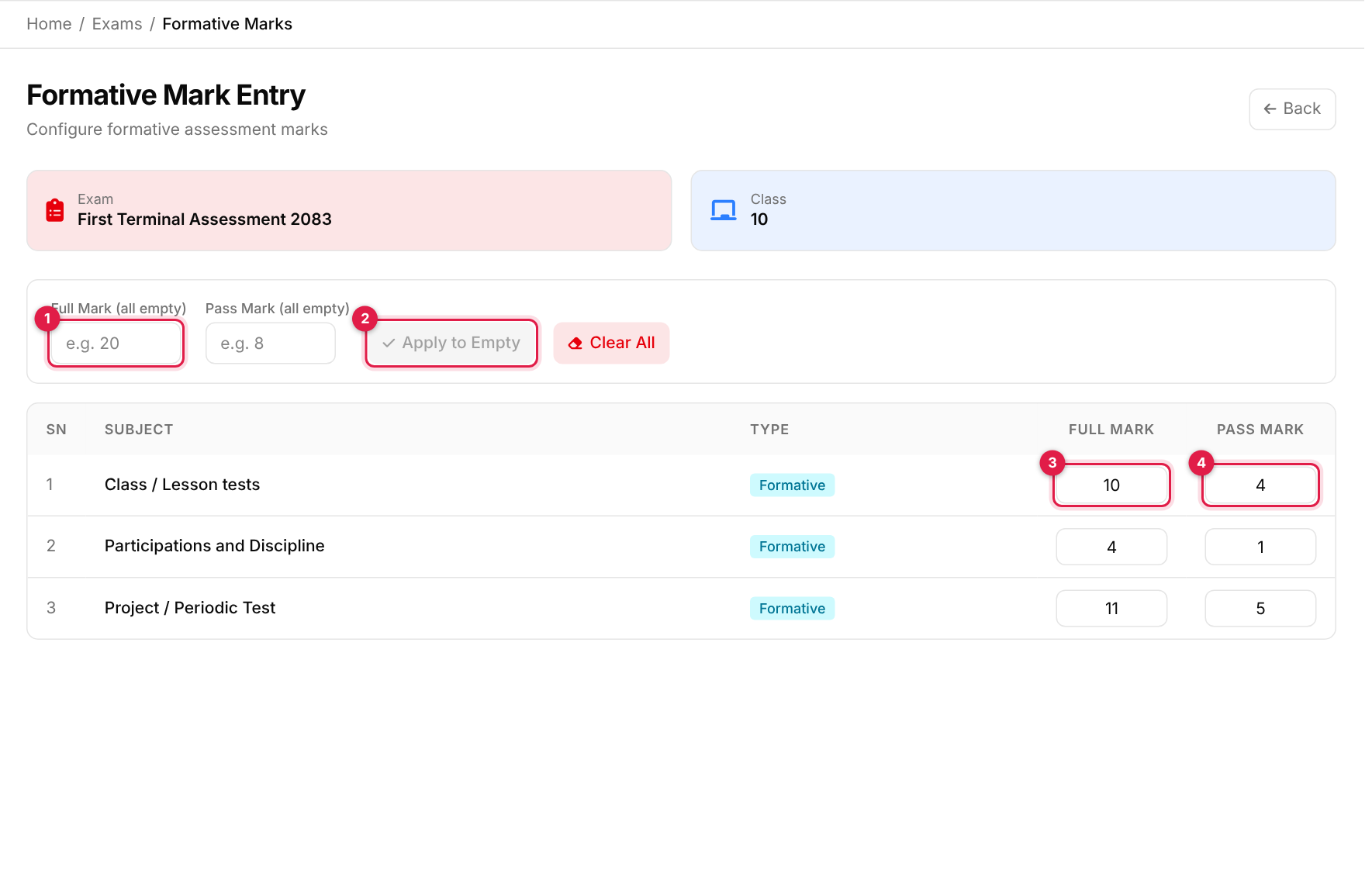
- 1Full Mark / Pass Mark (all empty) quick-fill boxes, as on the subject page.
- 2Apply to Empty.
- 3Full Mark for a formative assessment type.
- 4Pass Mark for it.
Each row is a formative assessment type assigned to the class's subjects (for example Project / Periodic Test). The values you set here become the FM (full mark) under each formative column on the mark-entry page and on report cards. The same rules apply: numbers only, pass cannot exceed full, and a pass mark of 40% is suggested. Click Save Changes when it appears. There is no edit or delete once saved; to change values, enter them again and save.
Class exam routine
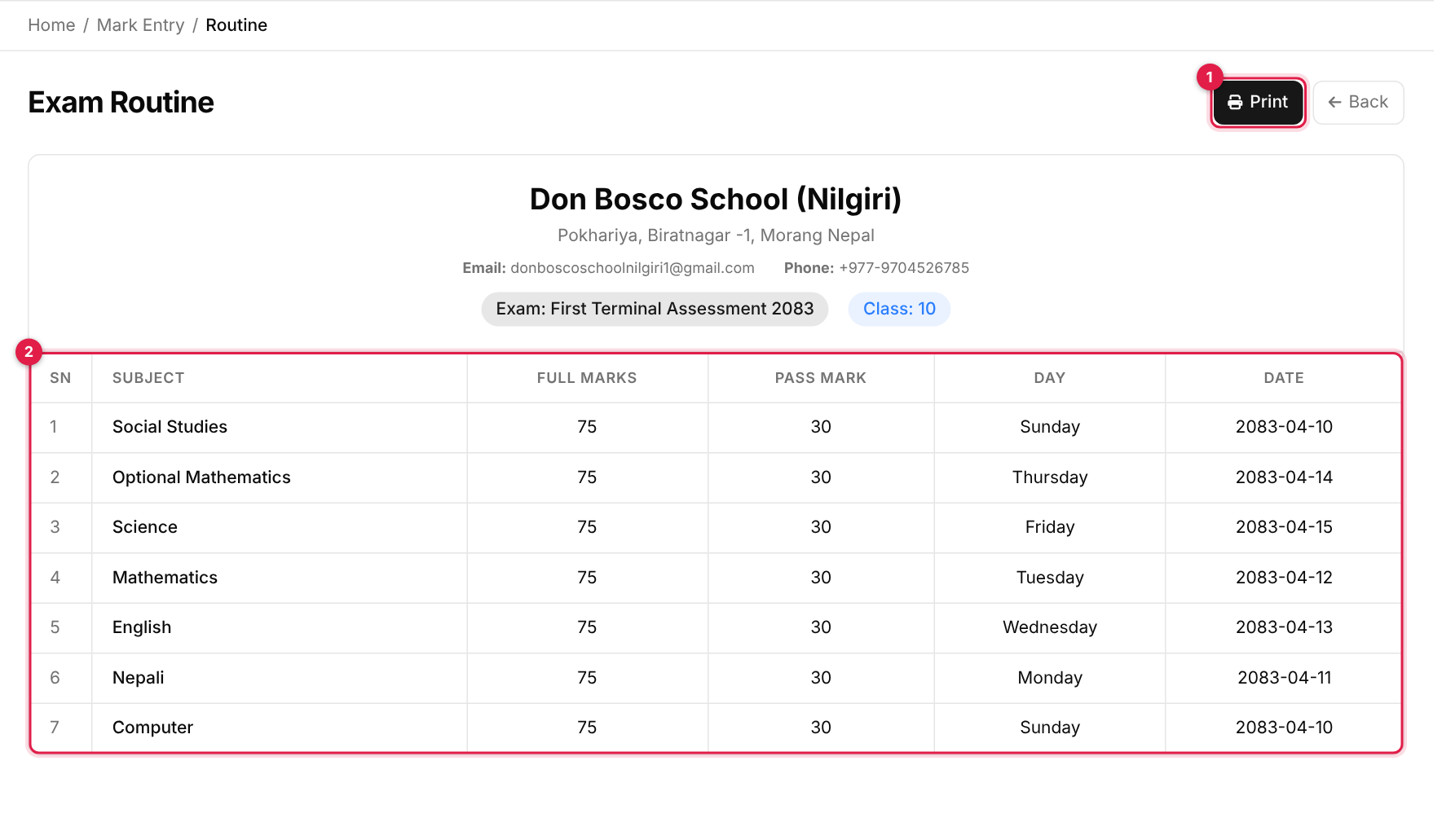
The calendar icon on the class's row opens this printable list of subjects with full marks, pass marks, day and date. It lists subjects of type Theory or Practical and stays blank until marks and dates are set. Use Print.
Messages you may see
| Message | What it means |
|---|---|
| Data added successfully! | The marks setup was saved. |
| Choose the date between the exam date. | An exam date is outside the exam's start and end dates. |
| Pass mark cannot be greater than full mark | Fix the pass mark before saving. |
| Updated Successfully | The deadlines on the permissions page were saved. |