Period
Named time slots in the school day.
A period is a named time slot, for example Period 1, 10:00 to 10:45. Periods are used when building class and teacher routines.
Where it is used
- Class routine and teacher routine
The list page
Open Main Entry → Period from the sidebar, or click the Period card on the Main Entry dashboard.
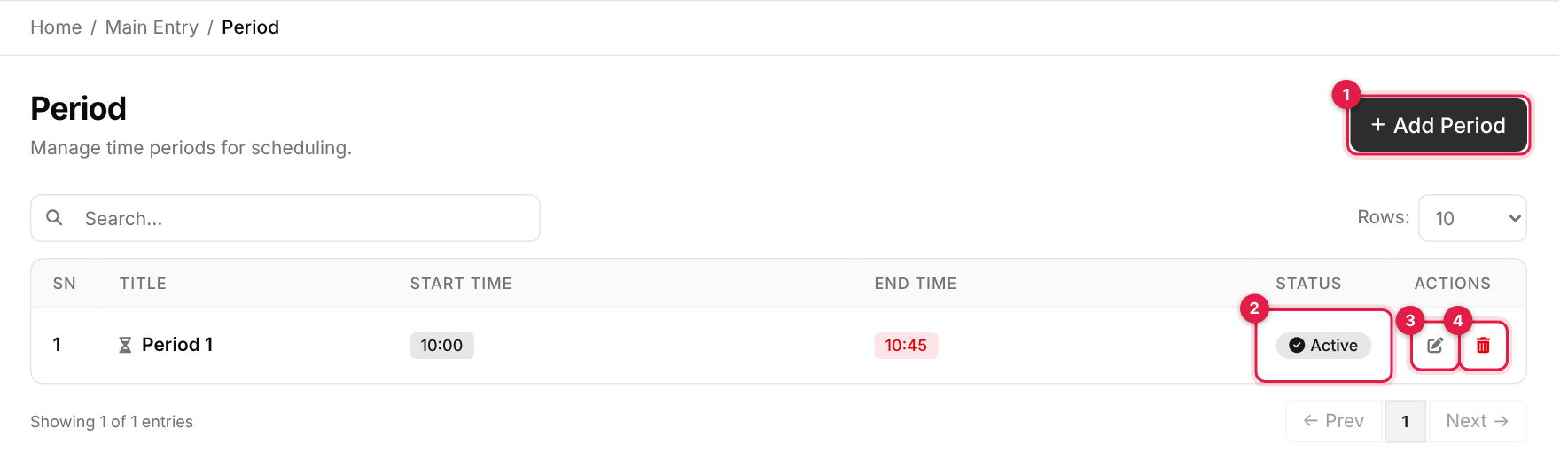
- 1Add Period opens the form in a panel on the right.
- 2Status: green Active or grey Inactive. It is read-only here; change it from the edit form.
- 3Edit (pencil) opens the same form with the record filled in.
- 4Delete (red bin) removes the record after a confirmation.
| Column | Shows |
|---|---|
| SN | Row number on the current page. |
| Title | Period name. |
| Start Time / End Time | When the period begins and ends. |
| Status | Active or Inactive. |
| Actions | Edit and delete. |
Known issue: search box
The search box on this page is shown but does not narrow the list yet. Use Rows and the page buttons under the table to move around.
Add a period
-
1
Open the form
Click Add Period (callout 1 above). A panel slides in from the right. -
2
Fill in the details
Complete the fields below. The numbers match the callouts in the screenshot.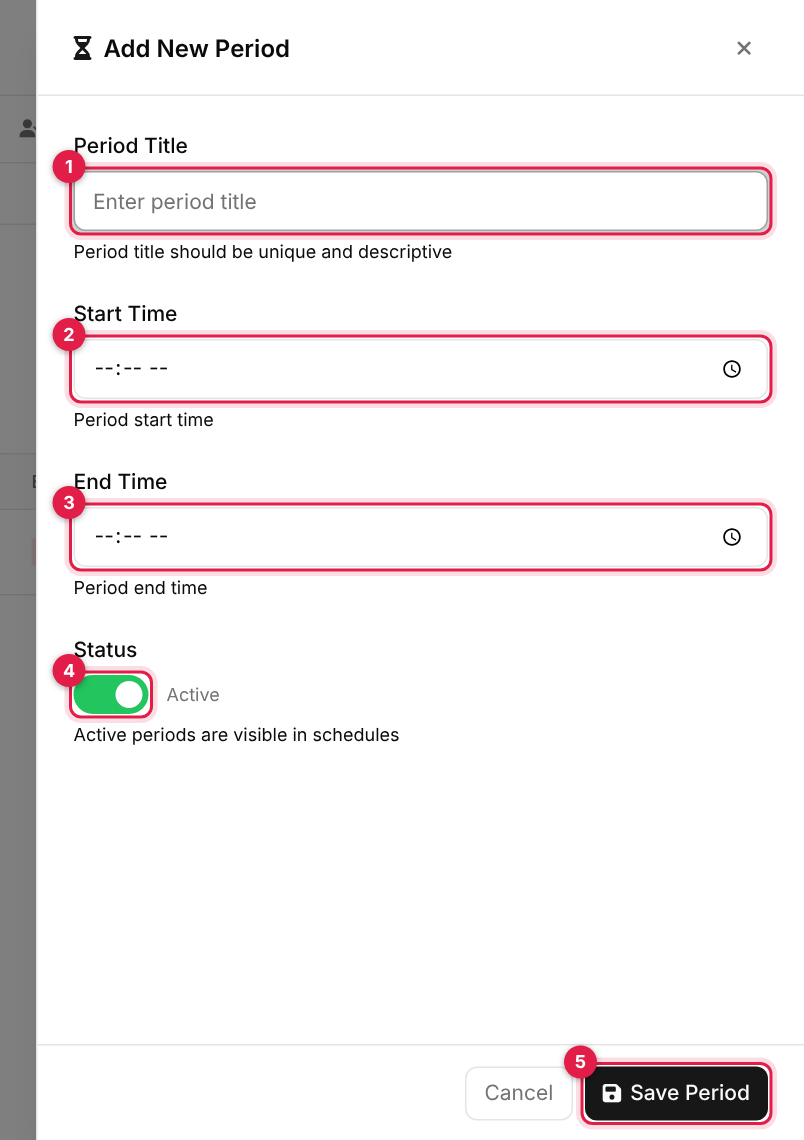
The add form for period # Field Required What to enter 1 Period Title Yes A unique name such as Period 1.2 Start Time Yes When the period starts. 3 End Time Yes When the period ends. 4 Status No On (default) = shown in schedules. -
3
Save
Click Save Period (the last callout). On success the panel closes, the list refreshes and a green Success message appears. If something is wrong, a red Error message lists the problems and the panel stays open so you can fix them. Cancel, the × or a click outside the panel closes it without saving.
Edit period
Known issue: editing
At the time of writing, saving changes to an existing period shows an Error message and the change is not kept. Adding new periods works. Until this is fixed, check with your administrator before deleting and re-creating a period that a routine already uses.
-
1
Open the record
Find the row and click the pencil icon in the Actions column (callout 3). -
2
Change and update
The panel opens as Edit Period with the current values filled in. Change what you need and click Update Period.
Deactivating instead of deleting
To retire a period without losing history, edit it and switch Status off. It stays in the list as Inactive and drops out of the dropdowns that use it.
Delete period
-
1
Click the bin
Click the red bin icon in the Actions column (callout 4). -
2
Confirm
Your browser asks you to confirm. Click OK to delete or Cancel to keep it.
Deleting is permanent
Deleted records cannot be restored. If it has already been used elsewhere in the system the delete may be refused with An error occurred. Please try again. Mark it Inactive instead.
Good to know
Titles must be unique
A period title that already exists is rejected. Number them clearly, for example Period 1, Period 2.
Messages you may see
| Message | What it means |
|---|---|
| <name> created successfully! | The period was added. |
| <name> is deleted successfully! | The period was removed. |
| <name> could not be deleted! | The delete was refused. |
| The name has already been taken. | Another period already uses that title. |
| An error occurred. Please try again. | The save or delete was refused, for example because the record is still in use elsewhere. |